Word to PDF Converter
- 4.2
- Rating
- 10.00M
- Installs
- Free
- Price
 Analysis by App-foxy
When I need to turn a Word document into something that looks settled and ready to share, I usually care less about editing and more about removing one awkward step from my workflow. That is where Word to PDF Converter makes sense. It is a business-focused Android app from Pequi Apps, built around converting DOC and DOCX files into PDFs without making me open a full desktop office suite.
My impression is that it works best as a small utility inside a larger productivity system. I would not treat it as my document editor, filing cabinet, or collaboration platform. Instead, I use it at the point where a document is already written and I need a more stable format for sending, printing, or keeping. That narrow purpose is also its main strength: the app is easier to understand when I see it as a finalization tool rather than an all-in-one office app.
Turning an unfinished document into a dependable handoff
I find the key idea here is not merely changing a file format, but deciding when a document is ready to leave the editing stage. A dependable handoff starts with a clear source file and a quick check of the finished copy, so I’ll focus on how that small habit makes mobile conversion more useful. It also sets up the next section’s practical routine.
You May Also Like

 Pandora - Music & Podcasts
Pandora’s Music Is Easy to Start, but Harder to Recover
Pandora’s strength is its low-effort path from a seed to a station. Its weak spot is how much confidence it asks you to place in connection, setup, and quiet recovery.

 8 Ball Pool
8 Ball Pool Is Built on Rivalries, Rematches, and Routine
A close look at the rivalries, rematches, shared routines, and unanswered safety questions that turn a quick pool match into a persistent mobile community.

 Samsung Music
Samsung Music’s Quiet Strength Is Playing What You Already Own
Its reach comes less from spectacle than from dependable access to a personal library. That simplicity is both the app’s strongest retention engine and its ceiling.

 AccuWeather: Weather Radar
AccuWeather Review: A Quick, Clear Forecast for Everyday Decisions
For everyday plans, the best forecast is the one you can understand quickly. AccuWeather makes rain timing, radar, and local conditions easy to act on, with a few trade-offs.

 Hill Climb Racing
Why Hill Climb Racing Still Turns Crashes Into One More Run
A tiny car, a bumpy hill and one more upgrade: Hill Climb Racing keeps resurfacing because its simple chaos makes every near-miss feel personal.

 AliExpress - Shopping App
AliExpress Makes Global Shopping Feel Personal, but Shoppers Bear the Risk
AliExpress turns a global marketplace into a pocket-sized discovery engine. Its reach is useful, its shopping loop compelling, and its trade-offs easy to miss.
More From Our News Desk
View All News


The workflow before conversion matters more than it first appears
A smooth result starts before I open the converter. I first finish the document in the app where it was created, check the wording, and make sure the file is saved somewhere I can find again. This sounds obvious, but it prevents a common mistake: converting a draft and then treating the PDF as if it were still easy to revise.
For a quick letter, invoice draft, application document, meeting handout, or short report, this approach is practical. I keep the editable DOC or DOCX file as the working copy, then use the converter only when I need a fixed version. That separation gives me a simple rule: Word remains the source, while PDF becomes the version I send or archive.
The app’s store summary focuses on fast DOC and DOCX conversion, and that description matches the role I would give it. It is not trying to replace a word processor. If I need to rewrite paragraphs, adjust styles, track changes, or collaborate with another person, I would go back to a dedicated office app first. Converting too early only creates extra versions and makes it harder to know which file is current.
Why PDF is useful at the end of a document routine
A Word file is convenient when I expect edits, but it can be a less comfortable handoff format. Different office apps may display spacing, fonts, page breaks, or tables differently. A PDF gives me a more deliberate final copy. That does not make every conversion perfect, but it gives the recipient a file that is intended for viewing rather than continued editing.
I find this especially useful when I am sending a document to someone who does not need to modify it. A completed form, a short proposal, a prepared notice, or a printable checklist usually benefits from being separated from the editable source. The converter therefore fits naturally between writing and distribution, not between brainstorming and writing.
A realistic everyday example
Imagine I prepare a one-page service estimate on my phone while commuting. I save the editable document, review the totals and contact details, and then open Word to PDF Converter when the wording is final. The resulting PDF is the copy I attach to a message, while the original remains available if the customer asks for a change.
That small distinction saves me from editing an attachment after it has already been sent. It also makes my storage easier to understand: one source document for future changes and one finished PDF for the specific handoff. The app is most valuable in this kind of moment, where speed and clarity matter more than advanced document management.
Capture and organization: the part the converter cannot solve for me
Conversion is only one stage of a sustainable system. Before using the app, I name files consistently and keep them in a sensible location. A name such as “Client estimate - March” is more useful than a string of duplicates with vague labels. The app can help me create the final format, but it cannot decide which version belongs to which project.
I also avoid converting every temporary note. If I turn rough ideas, half-written messages, and abandoned drafts into PDFs, I create clutter rather than order. My rule is to convert only when the document has a reason to exist as a fixed artifact. That might be sending it, printing it, submitting it, or storing it as a record.
This is one of the less obvious trade-offs of a focused converter. It removes friction from the file-format step, but that convenience can encourage unnecessary conversions. Used thoughtfully, it supports organization. Used automatically, it can leave me with many PDFs that are harder to revise than the originals.
What I check after the file is created
I do not assume that a successful conversion means the document is ready without a quick inspection. I open the PDF and scan the first page, the last page, headings, tables, and any section containing important figures. This takes little time and catches problems that are easy to miss in the original Word view.
Tables deserve special attention because they are often more sensitive to page width and spacing than ordinary paragraphs. The same goes for documents with unusual formatting, long headings, or content spread across several pages. If the PDF is being used for a formal submission, I also check that the page order looks right and that no important line has been pushed onto an unexpected page.
This review step is not a criticism unique to this app; it is good practice for any document converter. Still, it affects how I judge the experience. The app is a fast utility, not a substitute for checking the actual output. A few seconds of inspection are a reasonable part of the workflow, especially when the document matters.
A repeatable routine for regular use
For occasional conversions, I keep the process simple: finish the source file, save it, convert it, inspect the PDF, and then share or store it. When I do this repeatedly, I follow the same order every time. A routine is more useful than trying to remember a different method for each document.
I complete the editable document before opening the converter.
I save the source with a clear name so I can return to it later.
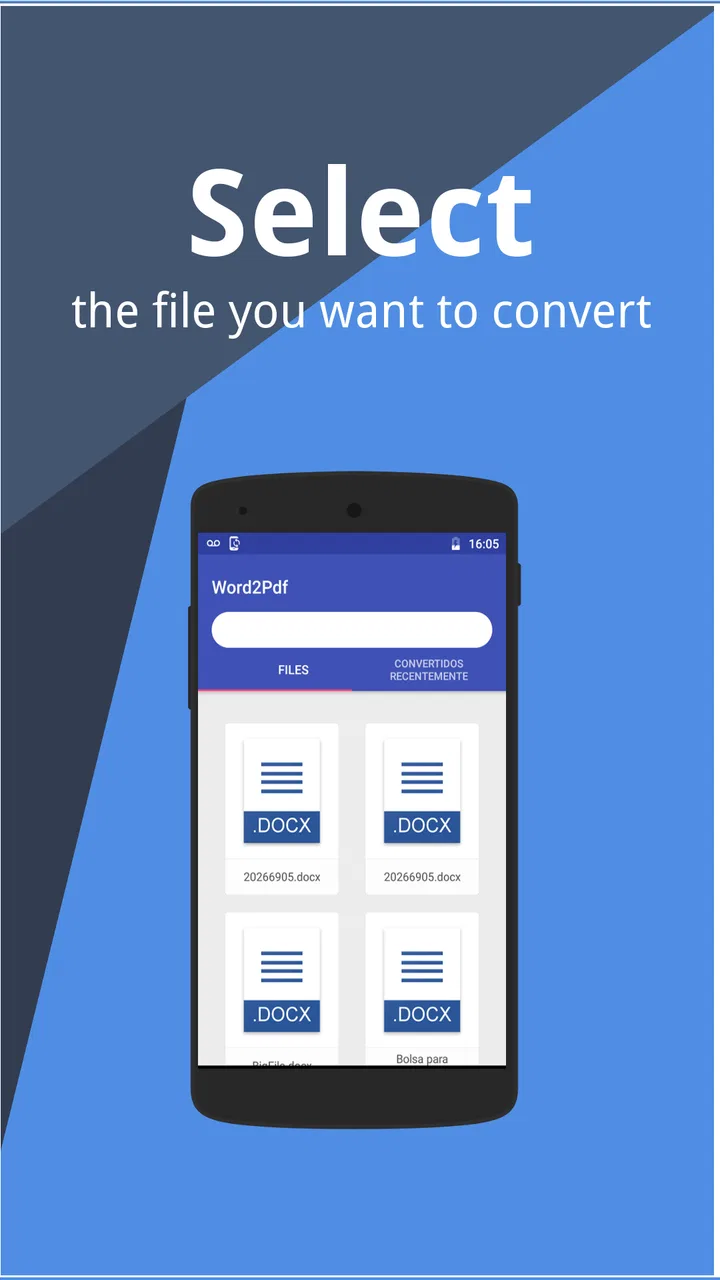
I choose the DOC or DOCX file that is meant to become the finished copy.
I convert it and open the PDF rather than assuming the result is correct.
I send the PDF only after checking the pages that contain important information.
I keep the editable original separately for future revisions.
The value of this routine is not that it is complicated. It is that each file has a clear purpose. The Word document remains flexible, and the PDF becomes the stable handoff. That distinction is more important to me than converting files as quickly as possible.
Where this app fits compared with the usual alternatives
The usual alternative is to use a desktop office suite or a broader mobile document app that includes editing, cloud storage, sharing, and export tools. That route can be better when I am already working inside a larger document ecosystem. If I need formatting controls, collaboration, or advanced review tools, a full office solution is the stronger choice.
Word to PDF Converter has a different advantage: its purpose is easier to isolate. I do not need to navigate a large editing environment just to create a PDF from a finished Word file. For someone who already has a document ready and wants a focused conversion step, that simplicity can be more comfortable than opening a feature-heavy alternative.
There is also a difference between converting on a phone and converting on a computer. A computer may offer more visibility when the source document is long or heavily formatted. A phone is more convenient when the file arrives through mobile storage or when I need to complete a small task away from my desk. I see this app as strongest in the second situation.
Failure points I would plan around
The first failure point is choosing the wrong source file. When several versions have similar names, it is easy to convert an older draft. Clear naming and a quick opening check before conversion are more reliable than trying to fix the confusion afterward.
The second is treating PDF as an editable replacement for Word. A PDF is useful precisely because it is less casually changed. If I expect comments, rewrites, or major layout work, I stay with the original document until those tasks are complete. Converting repeatedly during editing creates unnecessary copies and increases the chance of sharing the wrong one.
The third is assuming that every complex document deserves a mobile conversion workflow. A basic report may be ideal. A large document with intricate tables, unusual layouts, or demanding presentation requirements deserves a more careful review, and I may prefer a desktop tool for that job. The app can be convenient without being the best answer for every source file.
There is also a practical cost consideration. The app is free to install, while in-app purchases range from less than a dollar to well over one hundred dollars per item. I would therefore look closely at any purchase screen and decide whether the free workflow already covers my needs before paying for anything. For occasional conversion, I would be cautious about buying extras simply because they appear during a one-time task.
How accessible is it for different users?
The content rating is Everyone, which fits the straightforward nature of the task. I would expect the basic idea to be approachable for students, freelancers, office workers, and anyone who receives Word files but prefers to share PDFs. The most important skill is not technical knowledge; it is understanding when a document is final enough to convert.
That said, ease of use does not remove the need for file awareness. A new user may still wonder where the source document is stored, which version to select, or where the finished PDF goes afterward. I recommend practicing with an unimportant document first. That gives me a chance to understand the workflow before using it for a deadline-sensitive file.
The current version is 7.8.3, and the app requires Android 11 or newer. That makes the operating-system requirement relevant before installation: an older phone may not be a match, even if the conversion task itself is simple. On a compatible device, the app’s focused purpose should make more sense than expecting a complete mobile office.
What its popularity tells me, and what it does not
The app has passed ten million installs and holds an average rating of 4.2 from around eighty-seven thousand ratings. Those figures suggest that the basic conversion need is common and that many people find the utility worthwhile. I read that as reassurance that this is not an obscure experiment, but I would still judge it by my own document habits.
Popularity cannot tell me whether it is right for a particular workflow. Someone who converts a short document once a month may have a different experience from someone handling long business files every day. The app’s usefulness depends on whether I value a focused mobile step more than the broader controls offered by a full office suite.
Who should adopt it
I would recommend it to people who regularly receive or create DOC and DOCX files on Android and need a PDF without opening a computer. It is a sensible fit for quick business handoffs, school or club paperwork, simple client documents, printable notes, and personal records that should not be casually edited.
It is also useful for someone building a modest phone-based productivity system. The app can serve as the final checkpoint in a routine: write elsewhere, convert here, inspect the result, then share or archive it. That division of responsibilities keeps the converter from becoming overloaded with jobs it was not made to handle.
I would be less likely to recommend it as the main tool for a document-heavy professional who needs advanced layout control, collaborative editing, detailed revision history, or a carefully managed archive. In that situation, a full office platform or desktop workflow is likely to be more efficient. I would also skip it if my phone cannot run Android 11 or newer, since compatibility comes before convenience.
My final take on this focused utility
After looking at it as part of a complete routine rather than as an isolated button, I see Word to PDF Converter as a practical finishing tool. It does not need to be a full office suite to be useful. Its best contribution is helping me separate an editable source from a stable document that is ready to send, print, or keep.
The strongest results come from using it deliberately: finish the Word file first, organize the source, convert only when there is a clear reason, and inspect the PDF afterward. That process handles the main weaknesses of mobile conversion without adding much effort.
Pequi Apps has kept the concept clear, and the free app makes it easy to try for ordinary DOC and DOCX tasks. I would recommend it to anyone who wants a focused Android solution and understands that conversion is the final step, not the whole document workflow. If your real need is a quick, repeatable handoff from Word to PDF, this app earns a place in that routine.
FAQs for Word to PDF Converter
01What is Word to PDF Converter used for?
Word to PDF Converter is designed to transform editable Word documents, such as DOC and DOCX files, into PDF format. After conversion, the document is easier to share, print, archive, or open on different devices without relying on the original word-processing software. It can be useful for students, office workers, freelancers, and anyone who regularly sends finalized documents.
02Does Word to PDF Converter preserve the original document’s formatting?
In most cases, the app preserves common formatting elements, including text styles, headings, spacing, tables, and basic images. However, the final result can vary depending on the complexity of the source file, embedded fonts, charts, or unusual page layouts. Before sharing an important PDF, it is recommended to open the converted file and check page breaks, images, alignment, and special characters.
03Can I convert documents stored on my phone or in cloud services?
The app generally allows users to select Word files from local phone storage, downloads folders, document managers, or other locations made available through the device’s file picker. Depending on the version and platform, access to cloud services such as Google Drive, OneDrive, or Dropbox may also be available through sharing or file-selection options. File-access permissions may be required.
04Is Word to PDF Converter free to use?
Word to PDF Converter may offer a free conversion option, but some versions can include advertisements, usage limits, premium tools, or subscription-based features. Available pricing and restrictions depend on the specific Android or iOS release. Before converting many files, review the in-app purchase details and privacy information so you understand whether advanced options, ad removal, or batch conversion require payment.
05Are my Word documents safe when I use this converter?
Document safety depends on how the particular version processes files. Some converters work directly on the device, while others upload documents to an online service for processing. Avoid converting confidential contracts, identification documents, or financial records until you have checked the app’s privacy policy, permissions, and data-handling practices. After conversion, delete temporary files or uploaded copies if the app provides that option.
Pros
- Converts editable Word files into PDFs quickly on mobile.
- Preserves basic text formatting
- spacing
- and document structure.
- Useful for sharing documents in a widely supported file format.
- Simple interface suitable for users with limited technical experience.
- Can reduce the need for desktop software when handling occasional conversions.
Cons
- Advanced Word elements may not convert perfectly to PDF.
- Large or image-heavy documents can take longer to process.
- Some features may require an internet connection or account access.
- The free version may include ads or limit conversion options.
- Privacy may be a concern when uploading sensitive documents for conversion.

Word to PDF Converter
Gallery